Chrome Extension Demo
See every option, sample URL setup, and the browser context-menu workflow.

Custom context menu URLs
QuickOWL helps when the same copy, switch tab, paste, and search workflow repeats all day. Save URL templates once, then send selected text into the target page or app from the QuickOWL menu.
Regular work often involves copying text from one page and pasting it in another page to search or open a target record. When that happens many times a day, too much time gets spent on tab switching and paste steps.
QuickOWL passes selected text to favorite web pages through saved URL templates. In browsers, the flow is: select text → right-click → choose QuickOWL → choose the target page.
See every option, sample URL setup, and the browser context-menu workflow.
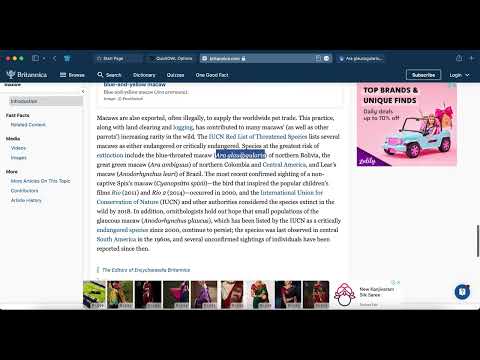
Watch the Safari setup and usage flow on YouTube.
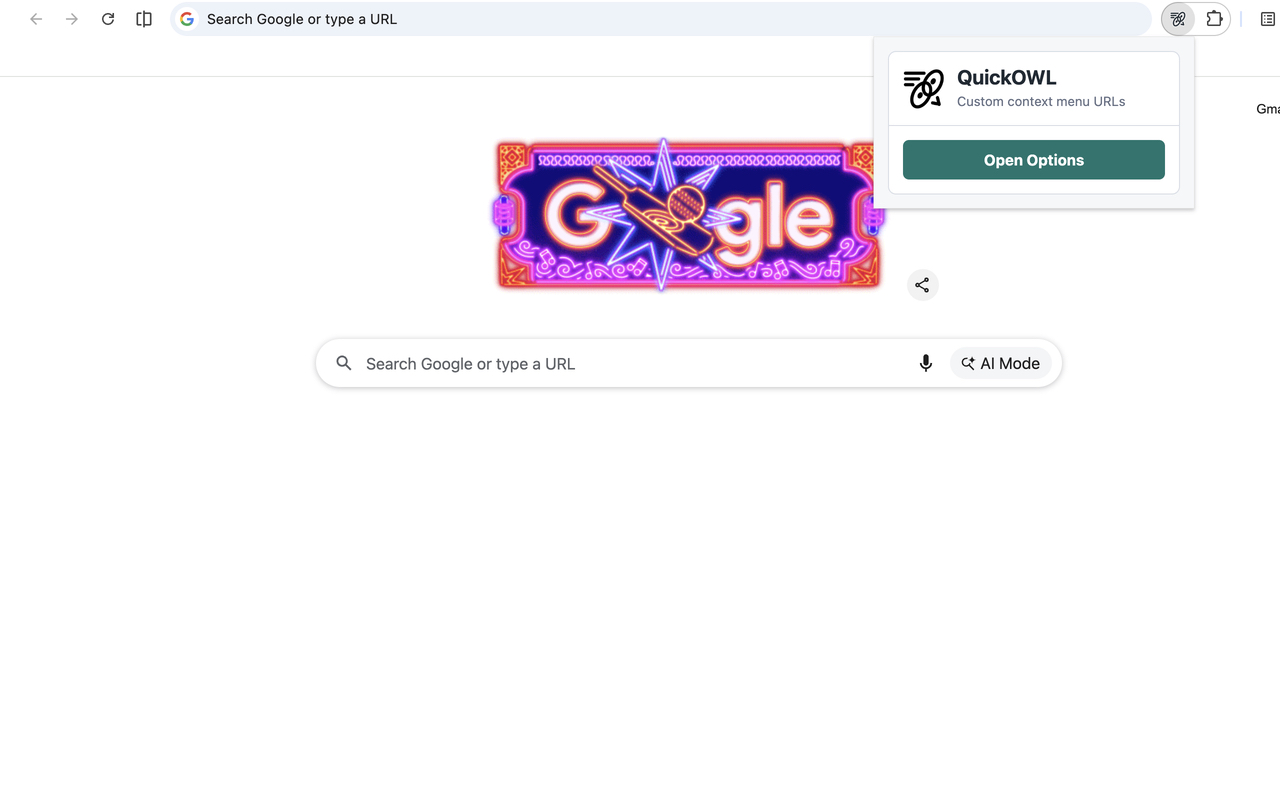
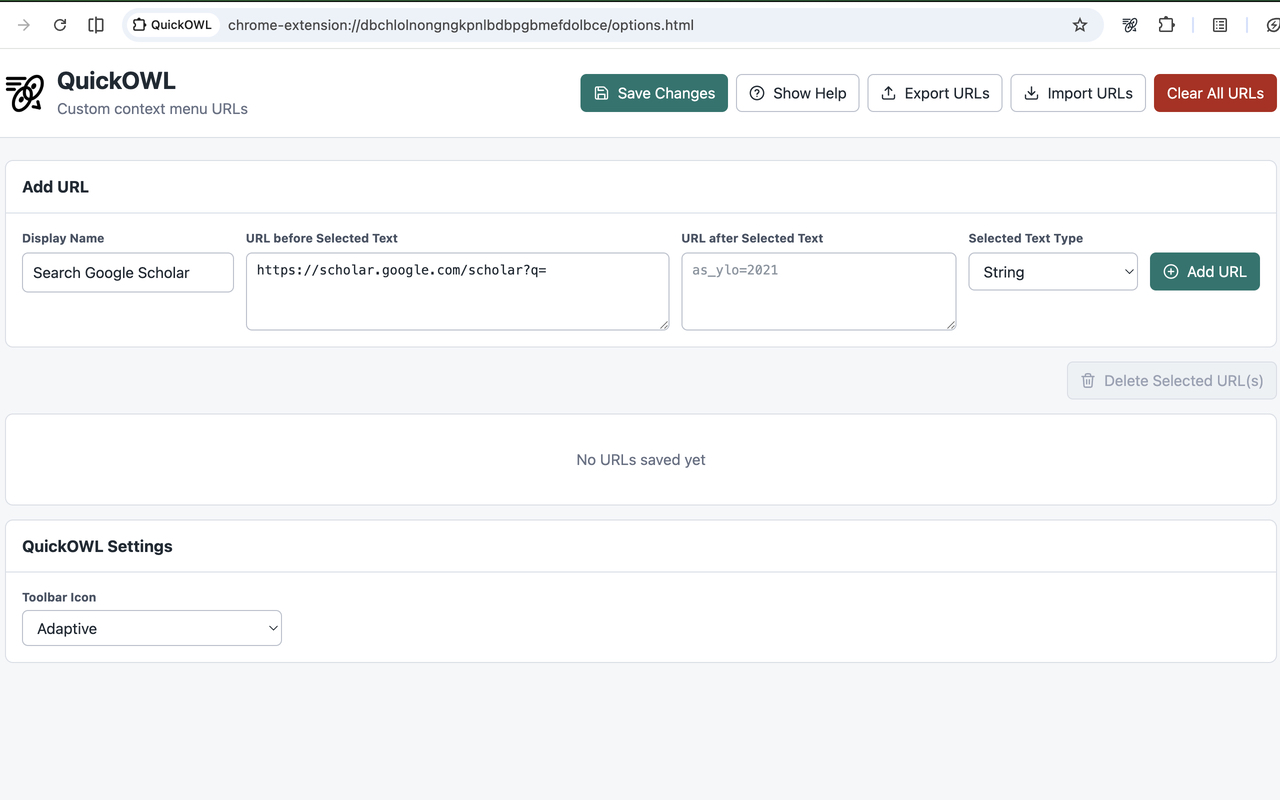
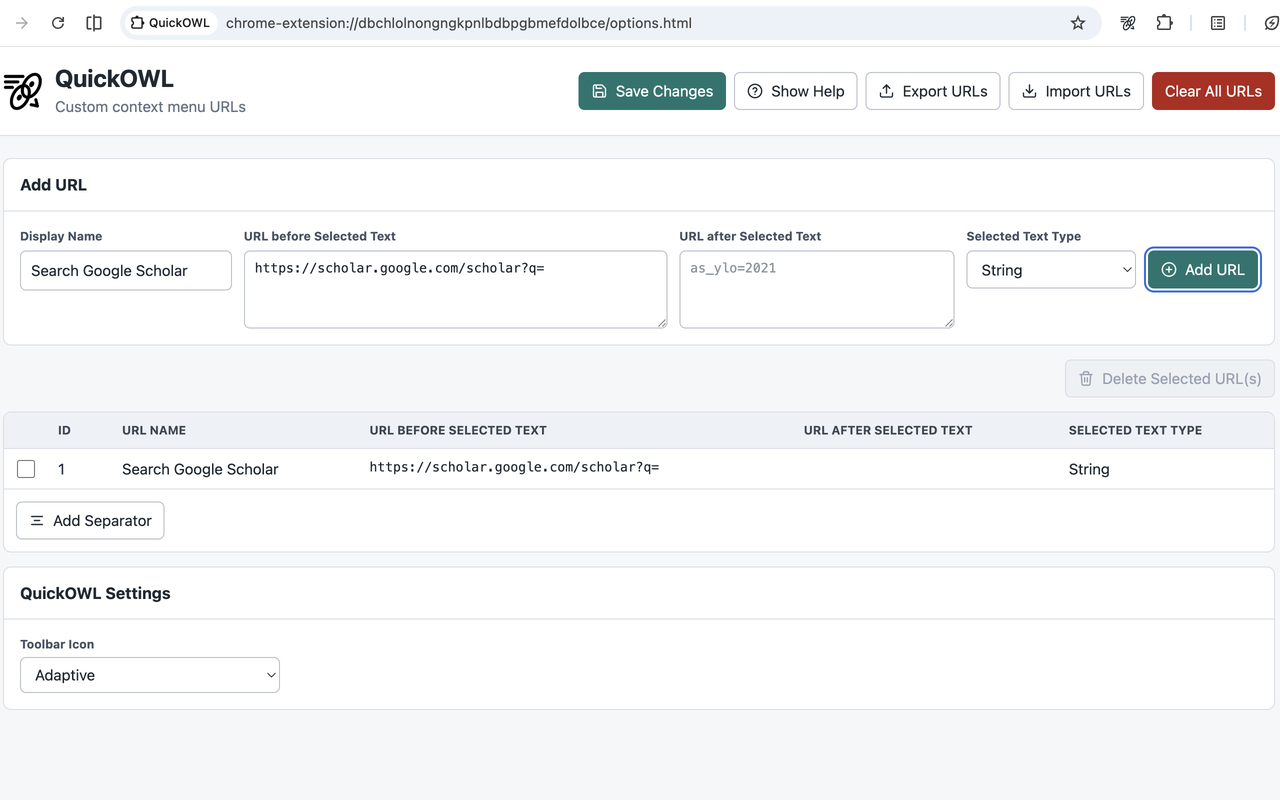
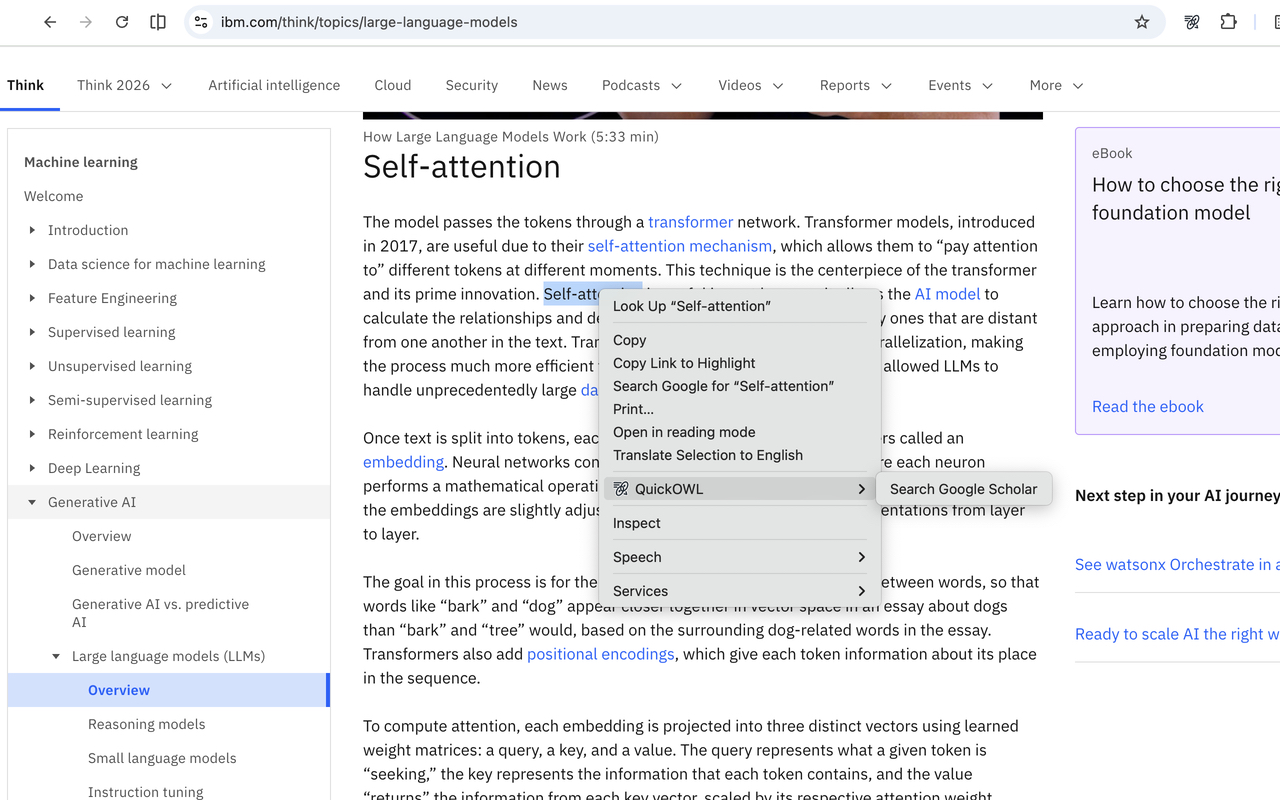
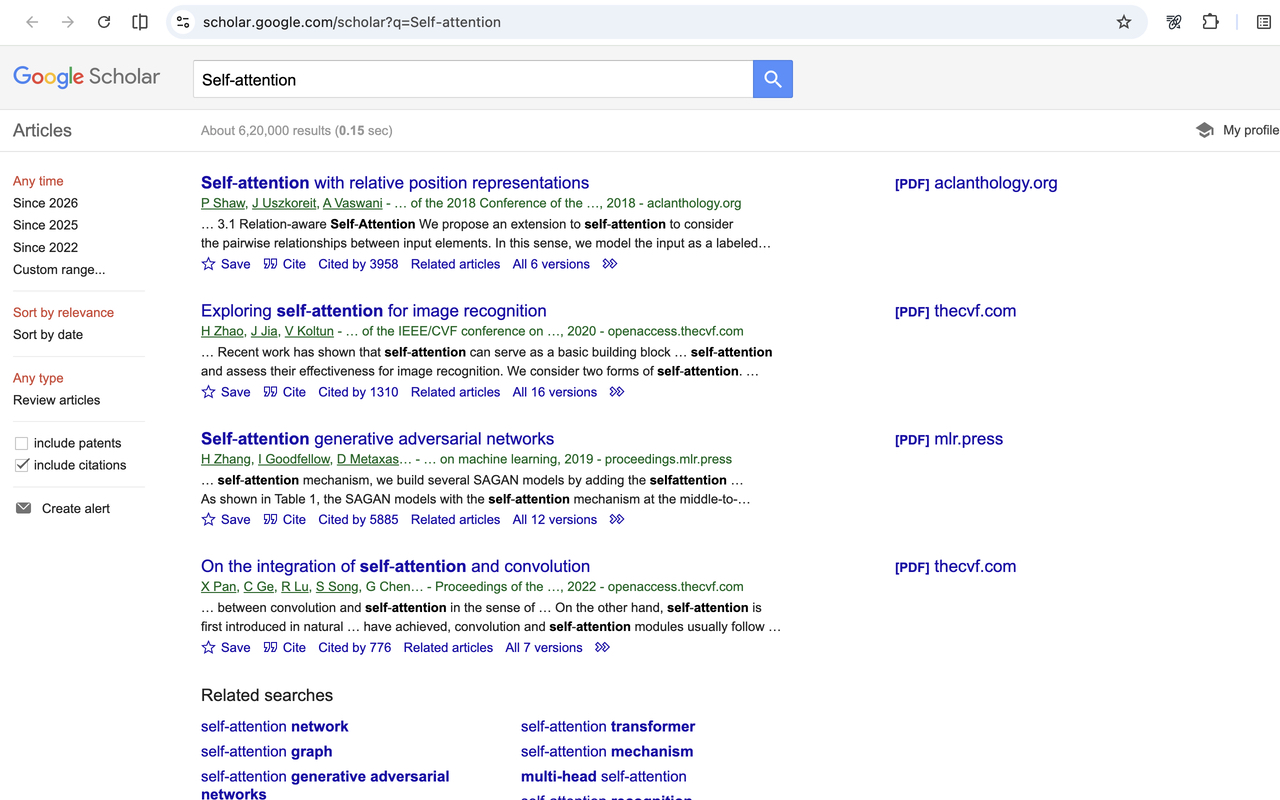
Download sample_urls.txt with ChatGPT, Gemini, Claude, Perplexity, Google, Bing, DuckDuckGo, Brave, Yahoo, Ecosia, Google Scholar, Wikipedia, Stack Overflow, YouTube, GitHub, Reddit, Amazon, and Google Maps targets. Then select the file from the Import URLs option.
| Client | Navigation | Instructions |
|---|---|---|
| Google Chrome | Window → Extensions → Find more add-ons | The extension link should be opened in Google Chrome, Brave, or Opera. Opera may warn that the source is another store, but the Chrome extension works in Opera. |
| Mozilla Firefox | Tools → Add-ons and themes → Find more add-ons | The extension link should be opened in Firefox. |
| Apple Safari | Safari → Preferences → Extensions | The extension link can be opened from any browser in macOS. |
| Microsoft Edge | Window → Extensions → Find more add-ons | The extension link should be opened in Microsoft Edge. |
| Thunderbird | Tools → Add-ons and themes → Find more add-ons → quickowl | Reach the add-on through Thunderbird to see the Add to Thunderbird button. |
| VS Code Extension | View → Extensions | The extension link should be opened in Visual Studio Code. |
QuickOWL opens a saved web or app link with the selected editor text as input.
Ctrl+Shift+P or Cmd+Shift+P, then run QuickOWL: Add Link to save a target URL.QuickOWL: Open Link from Selection, or run that command from the Command Palette.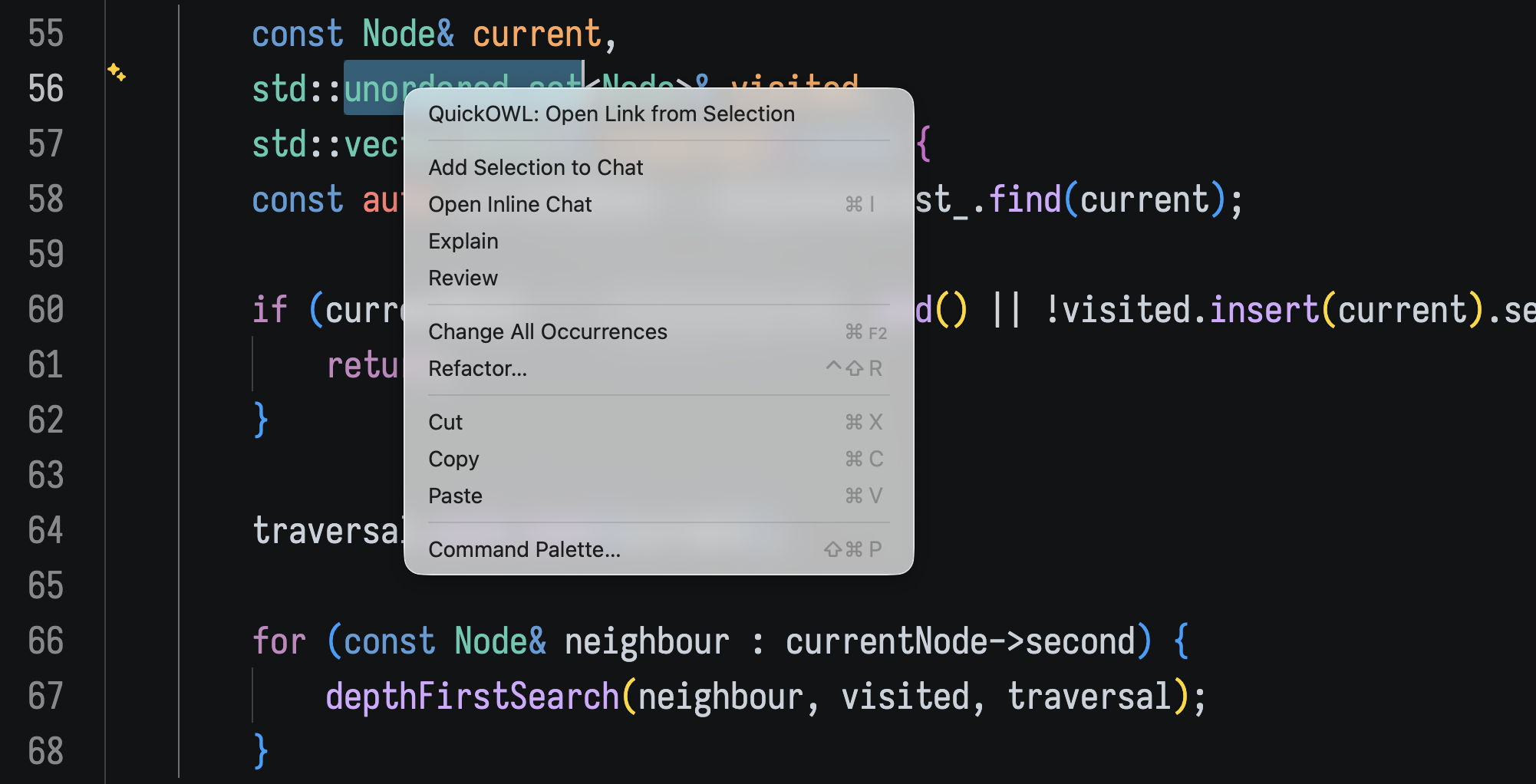
1. Open QuickOWL from the selection. Select code, right-click it, and choose QuickOWL: Open Link from Selection.

2. Select the destination. Choose one of your saved QuickOWL links from the picker.
Any work site, web page, or app deep link that accepts text in a URL can be used with QuickOWL.
| URL Name | URL Before Selected Text | URL After Selected Text | Selected Text Type |
|---|---|---|---|
| Search in Google Scholar | https://scholar.google.com/scholar?q= | String | |
| Ask ChatGPT | https://chatgpt.com/?q= | String | |
| Open Google Meet | https://meet.google.com/ | String | |
| Ask Codex | codex://new?prompt= | String |
To know more about URL parameters, refer to MDN's URL guide.
Last updated: June 6, 2026
| Client | Workaround |
|---|---|
| Slack | Slack can be opened in any browser where the QuickOWL browser extension is supported. |
| Outlook | Open Outlook on the web in a browser where QuickOWL is installed. The QuickOWL extension can then open saved links using text selected in an Outlook email. |
Special thanks to wOxxOm, who helped resolve blocking issues while developing the Chrome and Firefox extensions.